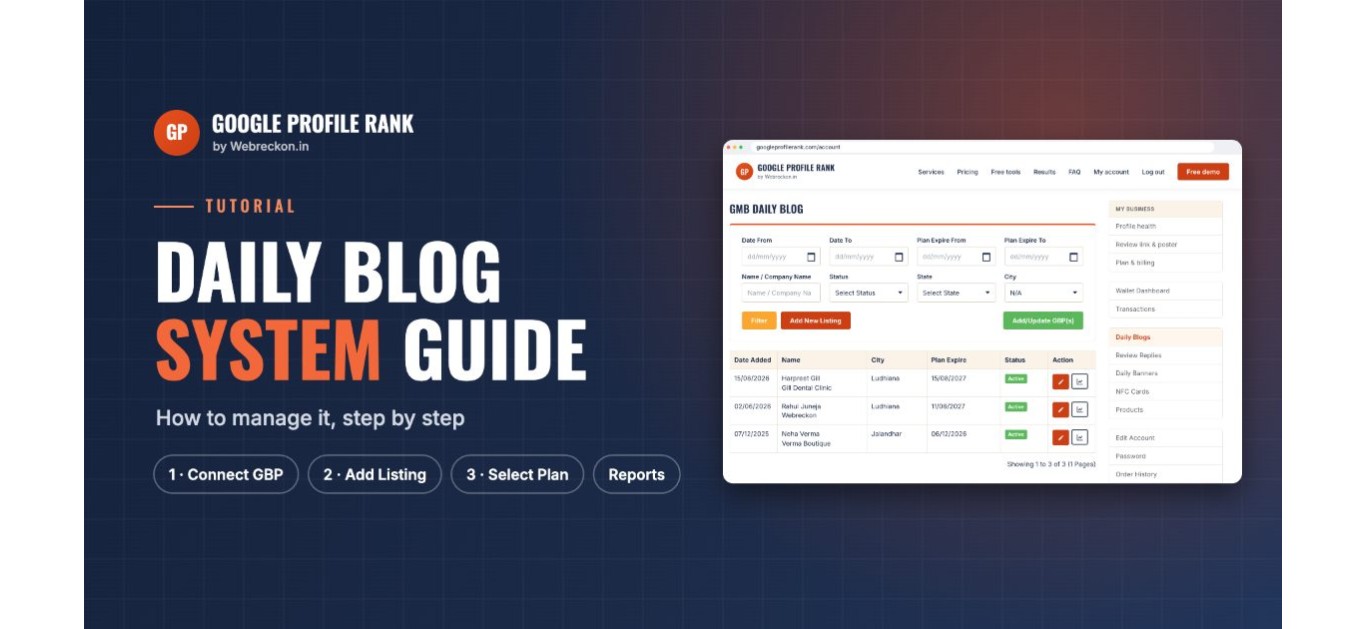
Our Daily Blog system publishes a fresh post on your Google Business Profile every day, written around your keywords and your service areas. Setting it up takes about five minutes. This guide walks you through every screen in your Google Profile Rank account, from connecting your profile to reading your monthly keyword report.
Before you start
- A Google Profile Rank account. If you don't have one yet, ask us for a free demo.
- Access to the Google account that owns or manages your Business Profile.
- A list of 10 or more keywords customers use to find you, and 10 or more areas you serve.
- For image posts, a few clear photos of your products or work.
Open Daily Blogs in your account
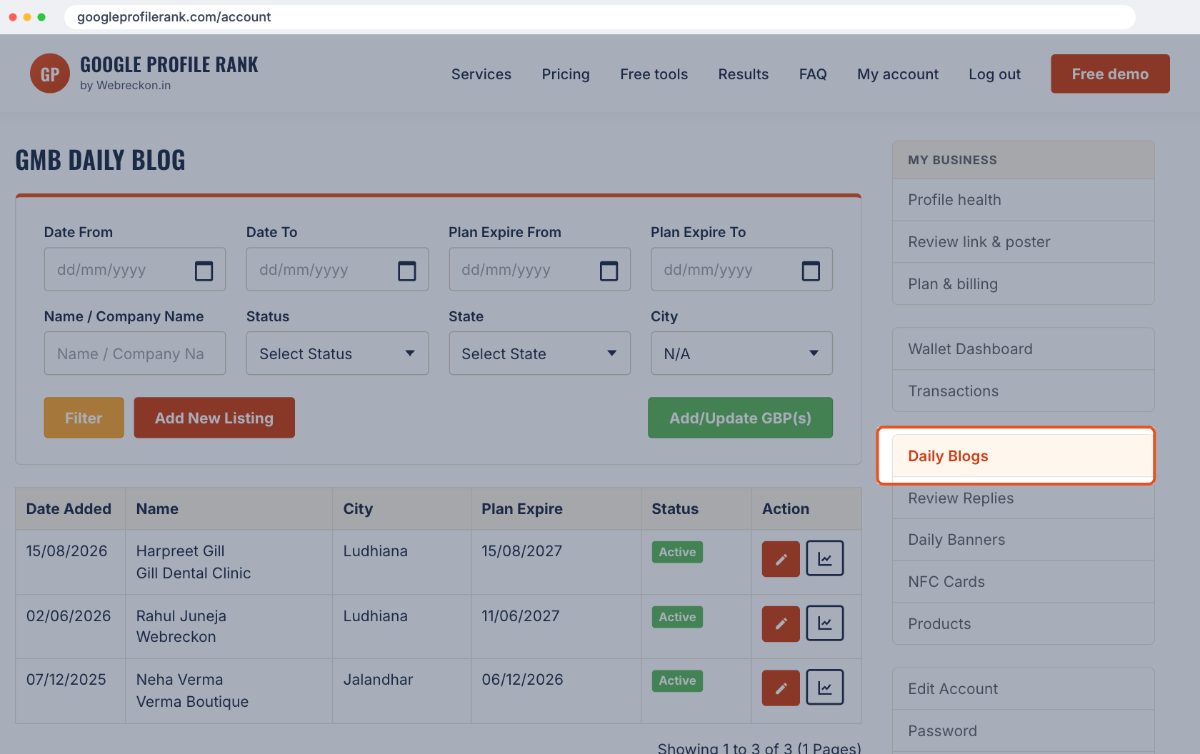
Log in at googleprofilerank.com and click Daily Blogs in the menu on the right. This page lists every listing on your account with its city, plan expiry date and status. Everything below starts from here.
Step 1: Connect your Google Business Profile
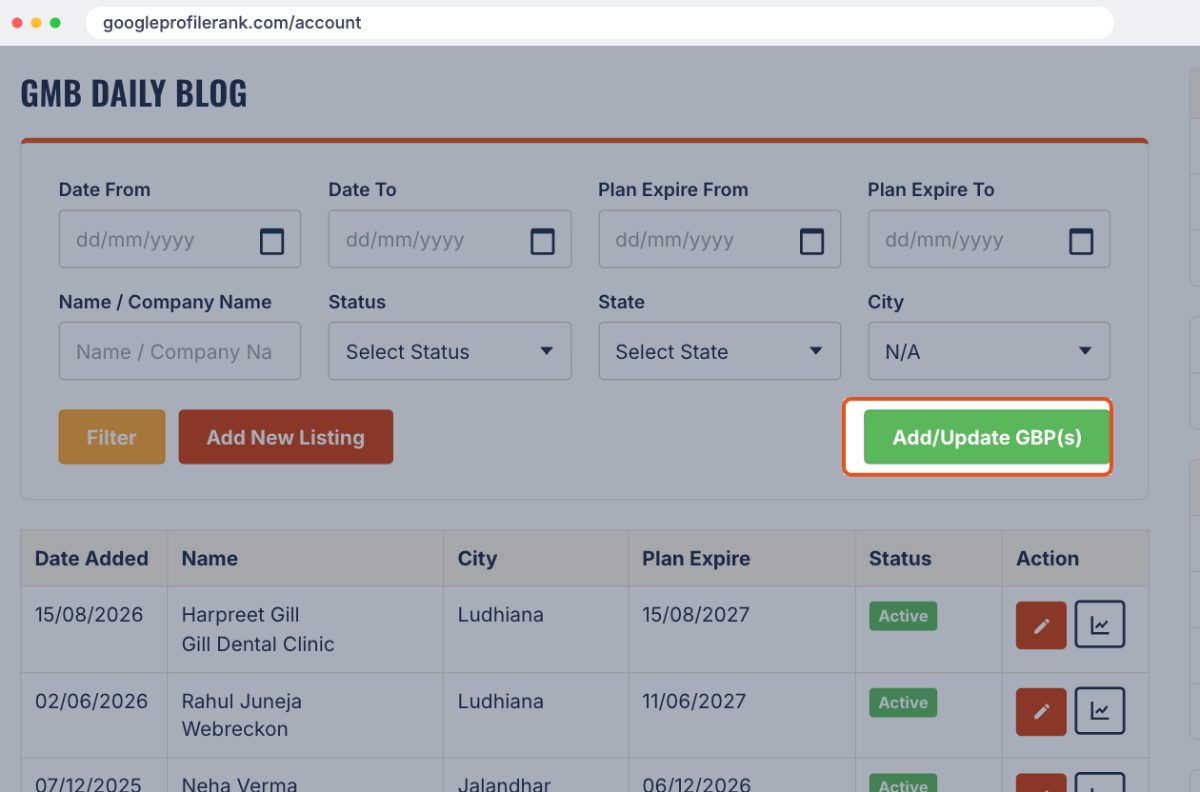
Click the green Add/Update GBP(s) button. You'll be asked to choose a Google account: pick the one that manages your Business Profile and allow access. Your profiles will then appear in the listing form. If you add a new location in Google later, click this button again to refresh the list.
Step 2: Add a new listing
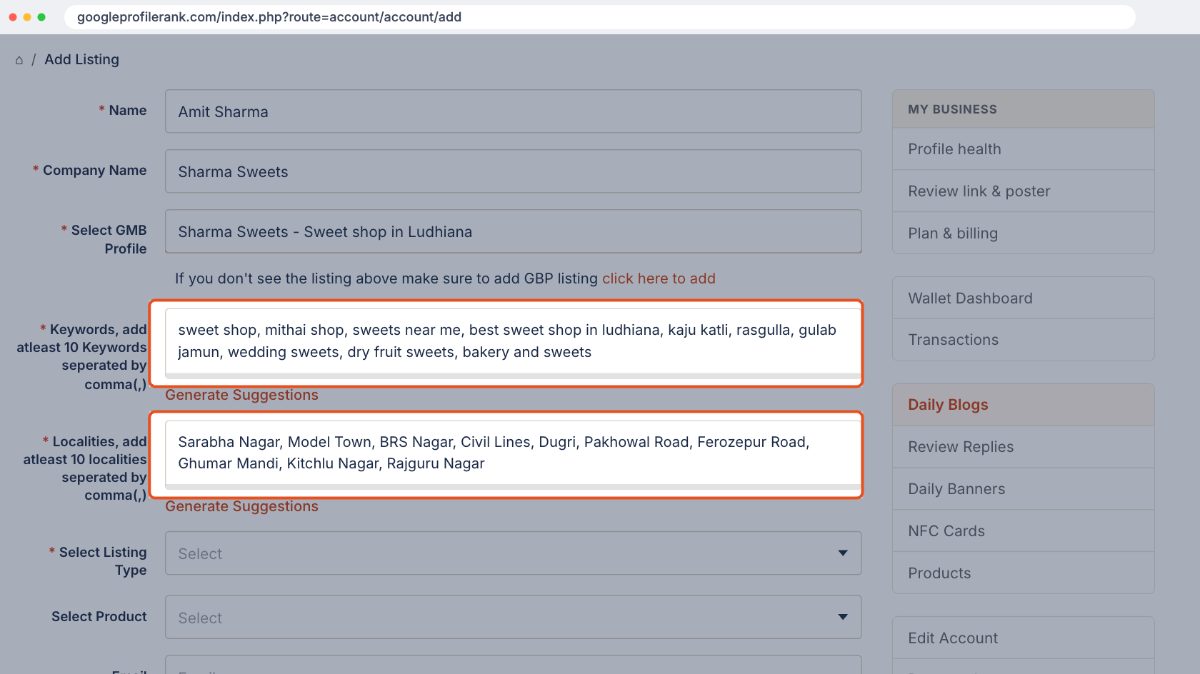
Click Add New Listing and fill in the form:
- Name and Company Name: your name and your business name.
- Select GMB Profile: choose your Business Profile from the dropdown. If it isn't there, use click here to add under the field to connect it first.
- Keywords: at least 10, separated by commas. Use the words customers actually search, such as "sweet shop near me" or "best dentist in Ludhiana". Click Generate Suggestions if you need ideas.
- Localities: at least 10 areas or neighbourhoods you serve, separated by commas.
Next, choose a Listing Type:
- Text Only: posts with text and no image.
- Recreated Image: posts with a designed image based on your product photos.
- Raw Image: posts that use your product photos as they are.
For either image option, upload your photos in the Products section of your account first. Each day's post uses one of them.
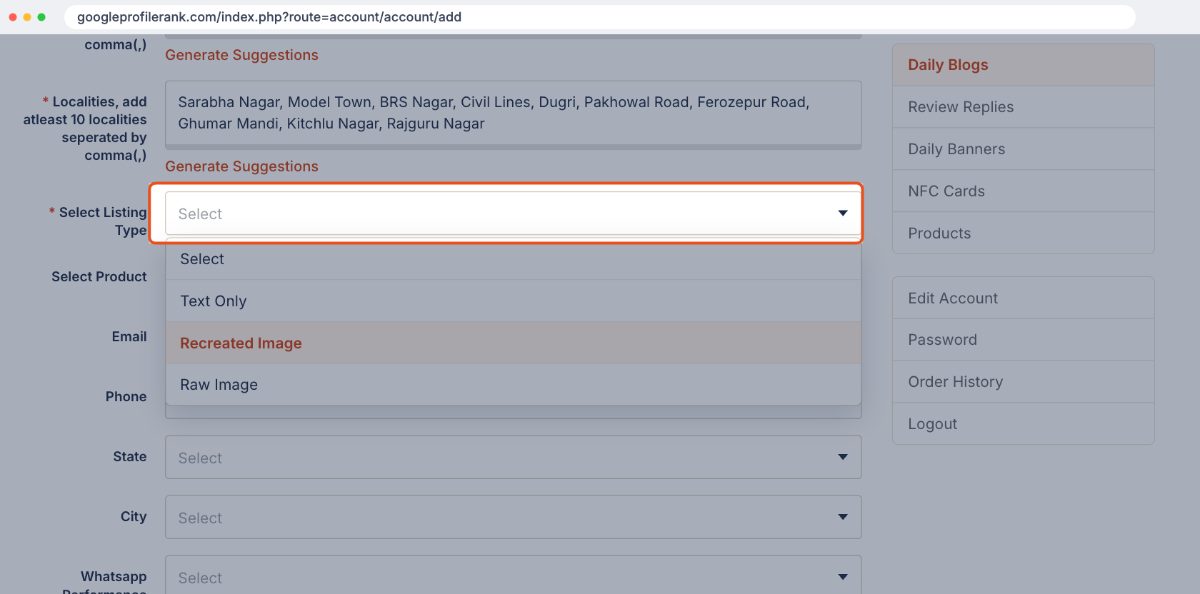
Finally, fill in your email, phone, state and city. Set WhatsApp Performance Update and Status to Enabled, check everything once, and click Submit.
Step 3: Choose a plan
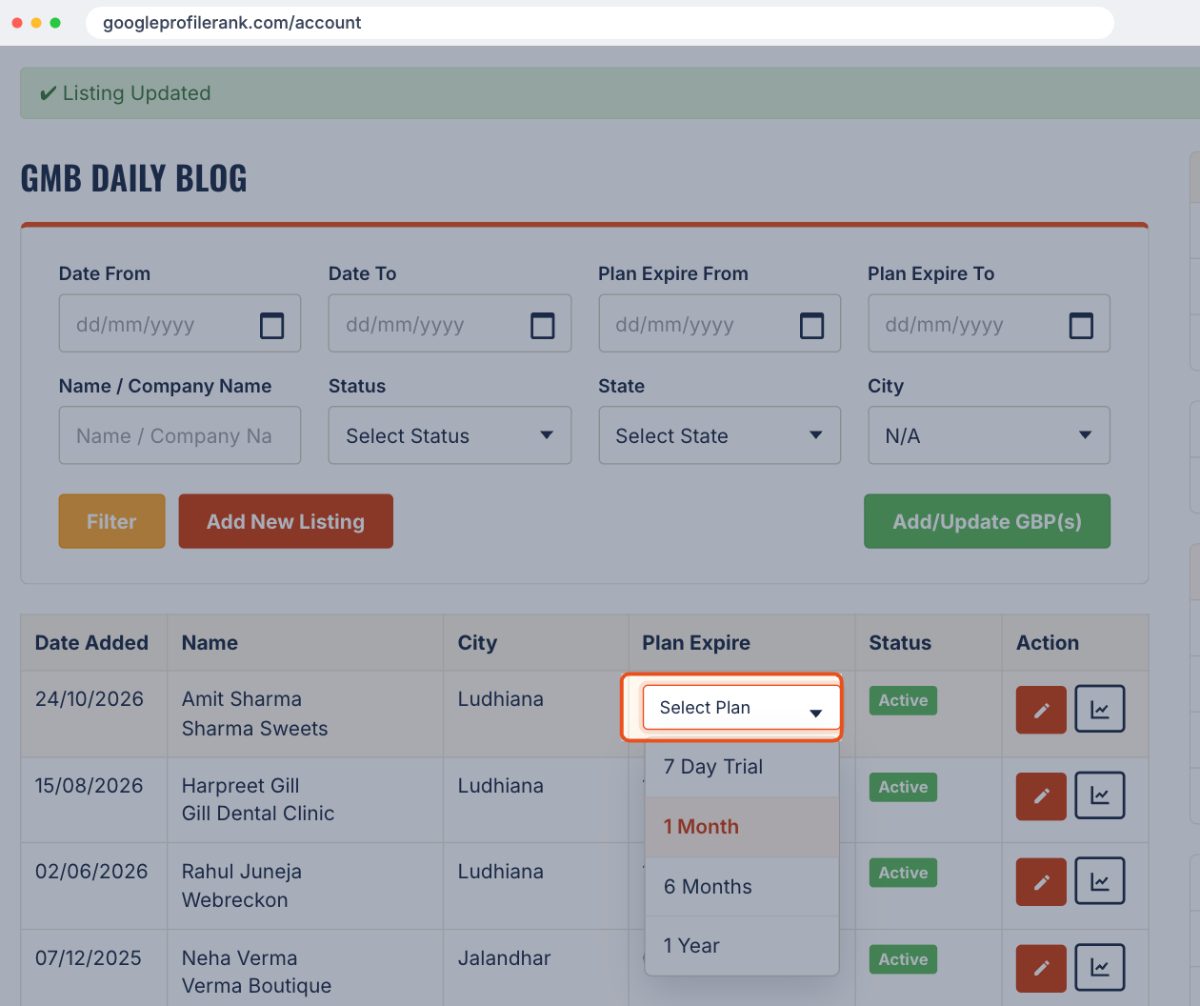
You'll see a Listing Updated message and your new listing at the top of the table. In the Plan Expire column, open Select Plan and pick 7 Day Trial, 1 Month, 6 Months or 1 Year. Once the plan is active, a new post goes live on your profile every day, automatically.
Editing a listing later
To change keywords, localities or any other detail, click the red pencil button next to the listing, make your changes and click Submit. Future posts will use the updated details.
Check your Search Keywords Report
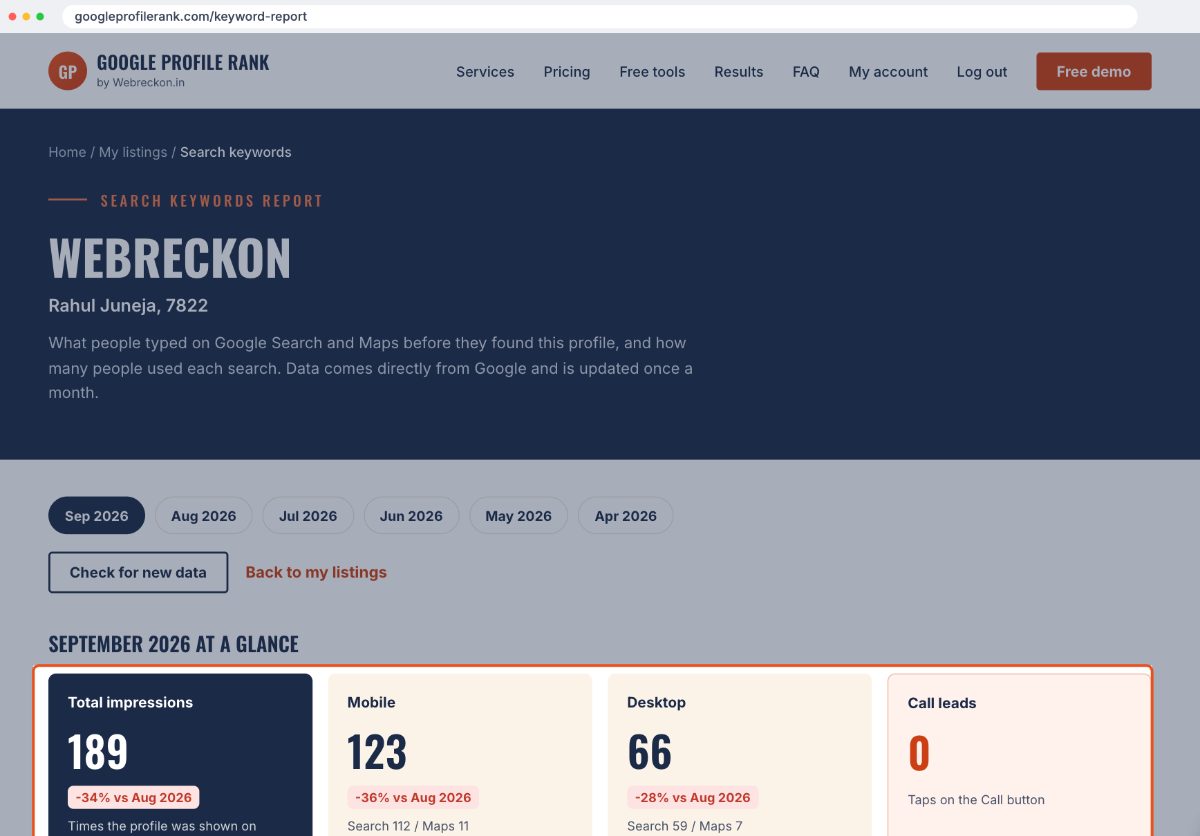
The chart button next to each listing opens the Search Keywords Report. It shows what people typed on Google Search and Maps before they found your profile, along with total impressions, mobile and desktop views, and call leads. The data comes directly from Google and updates once a month, so it's a good way to see whether your keywords match what customers really search.
Quick tips
- Have many listings? Use the filters at the top of the Daily Blogs page to find them by date, plan expiry, name, status, state or city.
- Keep an eye on the Plan Expire date and renew on time, so your daily posts never stop.
- Review your keywords every few months against the keyword report, and swap out terms nobody searches.
Need help?
Message us on WhatsApp at +91 79735 89915 and we'll set it up with you. Want to know more about the service first? Read about daily GMB posting or see our pricing.